
Passkey Authentication
Current Team Password Manager version: 15.194.309Beginning in version 14.190.309, Team Password Manager allows local users to authenticate using Passkeys. Passkey authentication is a a secure, passwordless sign-in method that uses cryptographic key pairs instead of the traditional username and password.
This document explains everything you need to know about passkey authentication in Team Password Manager. Here are the main sections:
- What is a passkey?
- How passkey authentication works in Team Password Manager
- Passkey authentication requirements and considerations
- Enabling/disabling passkey authentication
- Passkey authentication settings
- Passkey management
- Users with passkeys
What is a passkey?
A passkey is a WebAuthn credential: a public/private keypair where:
- The private key is stored in an external "device": a USB security key (for example, a Yubikey), the password manager of the browser (for example, Google Password Manager), or any other device. The devices available depend on the browser and/or operating system being used, or if a USB key is connected to the computer. Private keys are normally protected via some form of biometric access (for example a fingeprint scan), or a pin. They're also tied to a subdomain, for example, mytpm.mycompany.com.
- The public key is stored in Team Password Manager. Even if intercepted, the public key cannot be used to authenticate a user or derive the corresponding private key.
Team Password Manager allows local users to create passkeys that can be used to sign in to Team Password Manager. When a user signs in with a passkey, the user's device uses the private key to sign a challenge, and Team Password Manager verifies the signature using the corresponding public key stored on the server. If the verification succeeds, the user is authenticated. The following sections explain this process in more detail.
Note: Web Authentication (WebAuthn) is a web standard published by the World Wide Web Consortium (W3C).
How passkey authentication works in Team Password Manager
After enabling passkey authentication in Team Password Manager (see the Enabling/disabling section), a local user wanting to use passkey authentication should create a passkey to do it. For example, a user can create a passkey with a Yubikey (a USB security key).
The section below called Passkey management details how a user can create and delete passkeys.
If passkey authentication is enabled, the sign in screen will show the "Sign In using a Passkey" button just below the normal Sign in form:
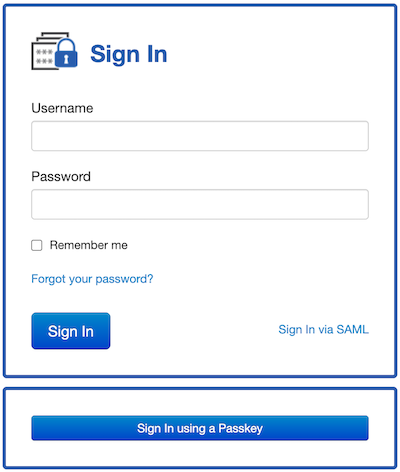
Then, a user with a passkey can click the "Sign In using a Passkey" button, after which:
- The browser displays the passkey options available for the current subdomain and the available authenticators.
- The user selects the appropriate authenticator. For example, a USB security key.
- The browser prompts the user to unlock the authenticator, for example by scanning a fingerprint or entering a PIN. For example, with a Yubikey, the user must click on the "Y" button and enter a pin.
- If the user is successfully verified, the authenticator uses the private key to sign the authentication challenge, and the browser sends the signed response to Team Password Manager.
- Team Password Manager verifies the signed response using the stored public key.
- If the verification is successful, the user is signed in to Team Password Manager.
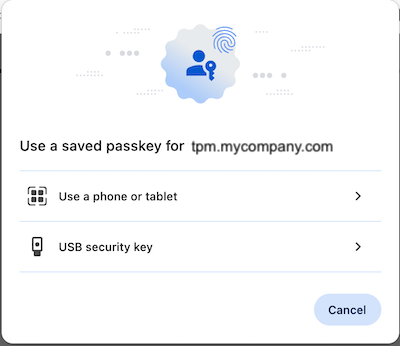
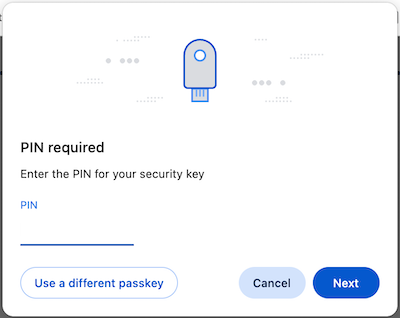
Although many things happen behind the scenes during authentication, the process is quick and straightforward for the user.
Passkey authentication requirements and considerations
First off, some technical requirements:
- For passkey authentication to work with Team Password Manager, the
opensslPHP extension must be installed in the system. - Passkey authentication requires HTTPS (Example: https://mytpm.mycompany.com), except when using
localhost. - Passkeys are tied to a subdomain, for example mytpm.mycompany.com. So, if a Team Password Manager installation is moved to a different subdomain (for example, newtpm.mycompany.com), all the existing passkeys will become invalid.
Besides this, here are some things worth considering:
- Only local users can authenticate using passkeys. SAML and LDAP users cannot.
- Users who authenticate with a passkey are not required to enter a two-factor authentication (2FA) code, even if 2FA is enabled for their account.
- The "Remember me" option is not used when a user authenticates with a passkey.
- A user can register more than one passkey. For example, one passkey may be stored on a YubiKey and another in Google Password Manager.
- A passkey can be used to authenticate from one or more systems, depending on where it is stored. For example, a user can carry a YubiKey and use it to authenticate from different computers and/or browsers. However, if a passkey is stored locally in a browser on a specific system, it can only be used from that browser on that system.
- Regardless of whether a user has registered any passkeys, the user can always authenticate using their username and password (and a 2FA code, if configured).
- Only the users themselves can manage their own passkeys (create, delete). Admin or IT users cannot see, create or delete passkeys of other users. See the Passkey management section for more information.
Enabling and disabling passkey authentication
Passkey authentication is disabled by default. To enable it, go to the "Settings" option in the top menu, then click on the "Passkey Authentication" option of the sidebar and finally on the "Enable Passkey authentication" button. After enabling passkey authentication you'll see the settings, discussed in the next section.
To disable passkey authentication, just click on the "Disable passkey authentication" button. When you do this the settings section disappears but the settings are not deleted, they're simply hidden. Likewise, passkeys registered by users are not deleted, simply hidden.
Disabling passkey authentication prevents passkey authentication from working. The passkey authentication button in the Sign In screen is not shown and users are not be able to sign in using passkey authentication. Users are not be able to create passkeys either.
Passkey authentication settings
Passkey authentication only has one setting and an internal notes field. You can view and change these settings in Settings | Passkey Authentication when the feature is enabled.
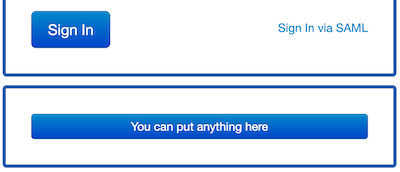
The setting is the "Passkey Sign in Text", which is the text shown in the button of the sign in screen. It defaults to "Sign In using a Passkey", but you can set it to anything you want:
The internal notes are only shown in the settings screen, and are meant to write notes related to passkey authentication.
Passkey management
Users can only authenticate using a passkey if they previously created a passkey. To do so, the user must go to their account (clicking on their name in the top menu), and then select the new "Passkeys" tab.
The passkeys tab shows the passkeys the user has created, and allows the user to create new passkeys or delete the existing ones.
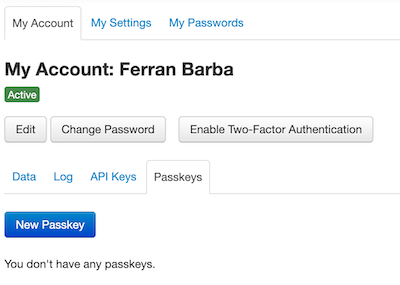
Important note: only the users themselves can manage their own passkeys (create, delete). Admin or IT users cannot see, create or delete passkeys of other users. The only information an Admin or IT user has is if a user has one or more passkeys. See the Users with passkeys section for more information.
How to create a passkey
To create a passkey, a user should follow these steps:
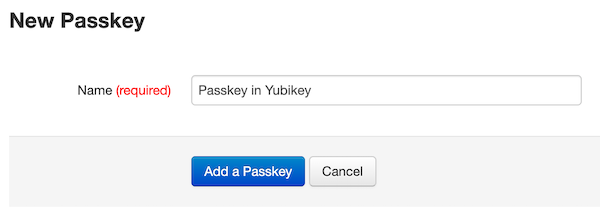
- Click the "New Passkey" button in the Passkeys tab of "My Account".
- Enter a name for the passkey. This name is purely informative for the user. It's just used to distinguish it from other passkeys the user may create:
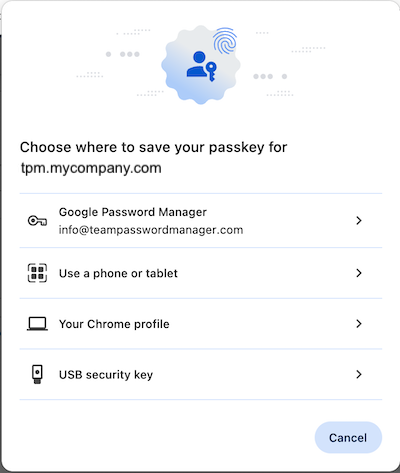
- After clicking the "Add a Passkey" button, the browser will present the available options where to store the passkey (the private key part), for example:
- The user should select one of the options and follow the steps the browser instructs to validate it.
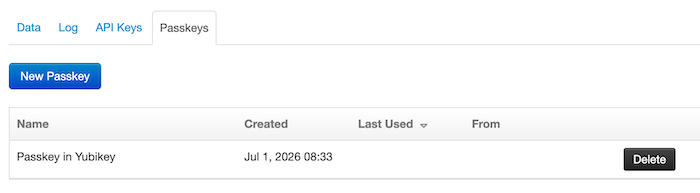
- If everything goes well, the passkey is saved in the device (private key) and in Team Password Manager (public key). In Team Password Manager, the passkey is shown in the Passkeys tab of the user.
- From now on, the user can sign in to Team Password Manager using this passkey.
How to delete a passkey
To completely delete a passkey, a user should follow these two steps:
- Delete the passkey in Team Password Manager (the public key): to do so, the user should click on the "Delete" button of the passkey to delete and confirm the deletion.
- Delete the passkey in the external device (the private key): deleting the passkey in Team Password Manager doesn't delete the private key part of passkey in the external device. The user should access the external device where the private key is stored (for example, for Google Password Manager is
chrome://password-manager/passwords) and delete it there.
Users with passkeys
As noted in previous sections, only the users themselves can manage their own passkeys (create, delete). Admin or IT users cannot see, create or delete passkeys of other users. The only information an Admin or IT user has is if a user has one or more passkeys.
When a user has one or more passkeys, the passkey icon  is shown in the user screen and also in the users list:
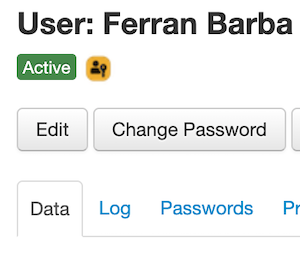

In addition to this, the users list now includes a new filter called "Users with passkeys", that shows which users have passkeys (one or more). This filter is only visible when there are users that have passkeys.
Document changelog
| June 30, 2026: | Document created |
