Main screen
This is the main screen of Team Password Manager. Each user sees different passwords depending on the projects he/she has access to.
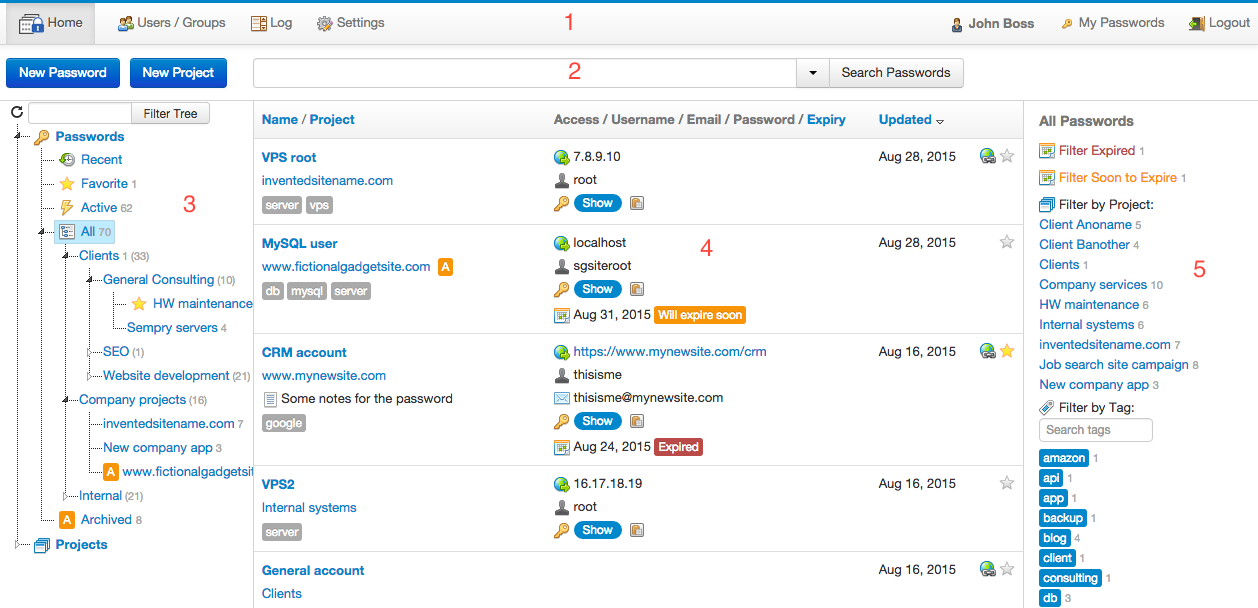
1) Administrative menu on top, with special options for admins (Users/Groups, Log and Settings).
2) Search passwords or projects.
3) Tree with different lists and the projects hierarchy.
4) Main working area. Here you see a list of all the passwords the user can see.
5) Sidebar with additional filters.
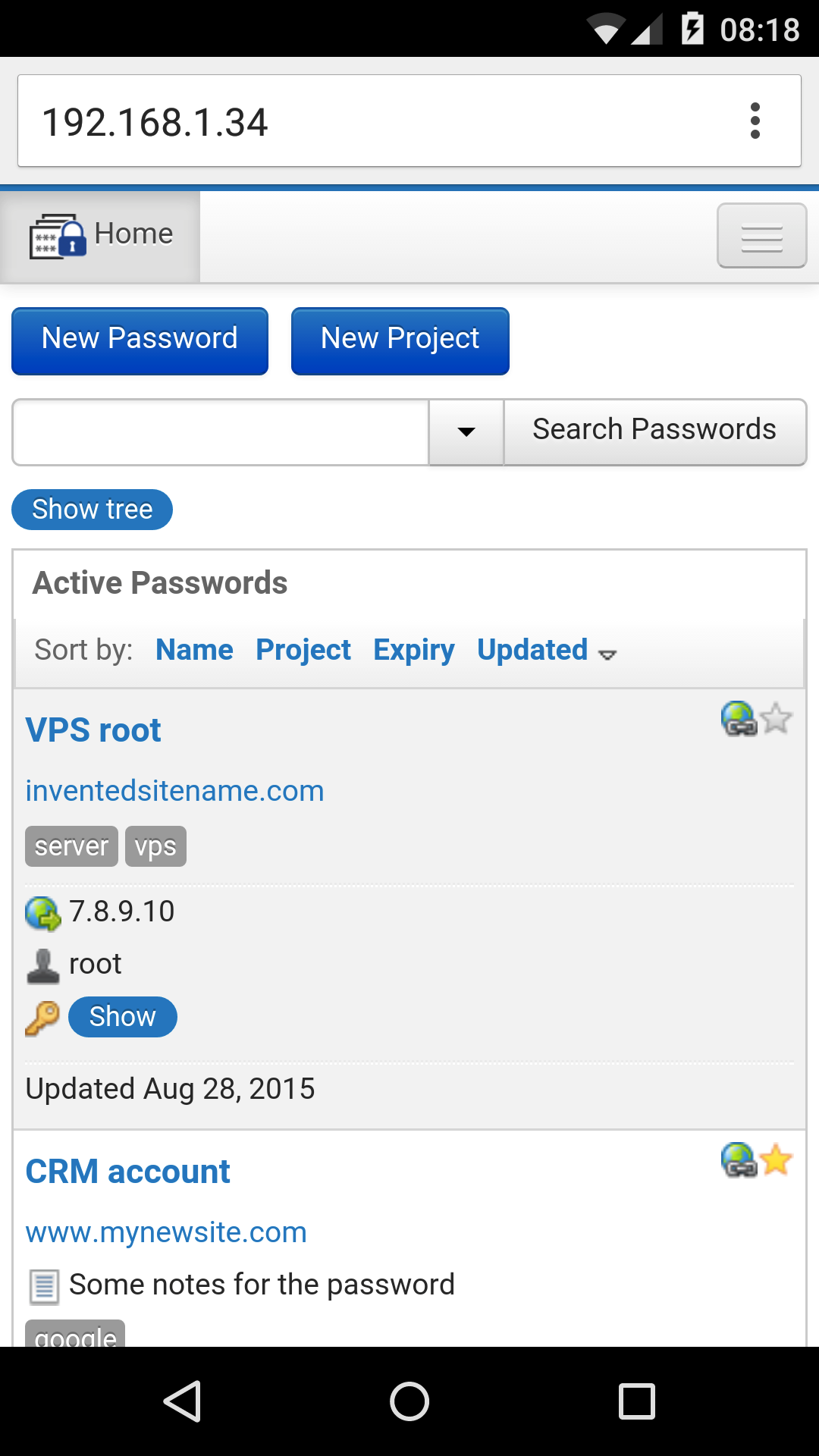
Here's the same screen as seen on a mobile device (Android):
Adding a password is a breeze
Just click on New Password, select the project and enter a few fields, that's all
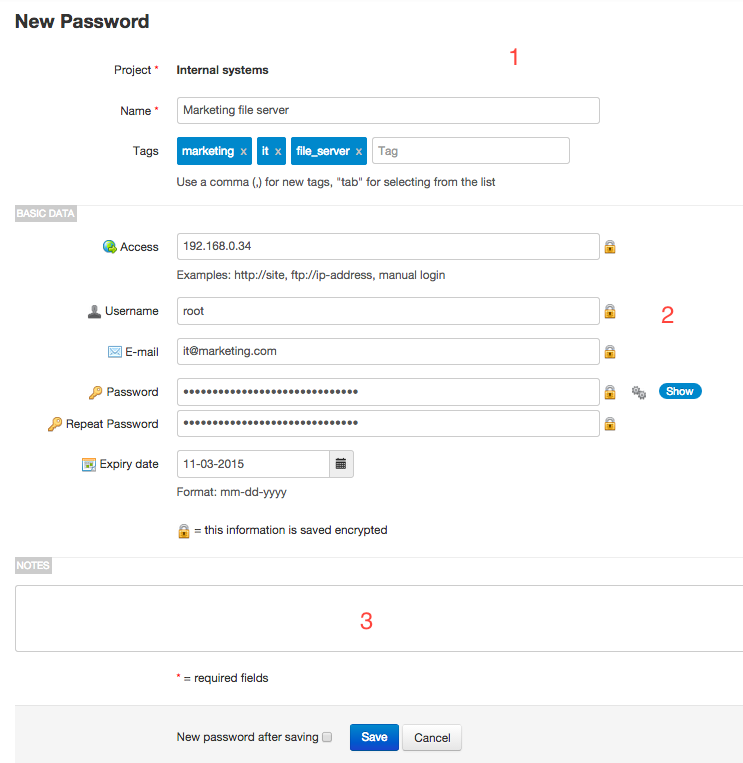
This screen is also used for editing a password.
1) Project, name and tags (for easy filtering). Only the name is required.
2) Basic data of the password: access, username, e-mail and the password itself. The "Password" field is saved encrypted in the database, using AES-256. The password is hidden by default, and you can click on "Show" to view it. Use the integrated strong password generator to generate a strong, random password and insert it in the password field.
3) Password entries also have a notes field and, optionally, up to 10 custom fields.
All the information of a password ...
... is available on this screen, the password view:
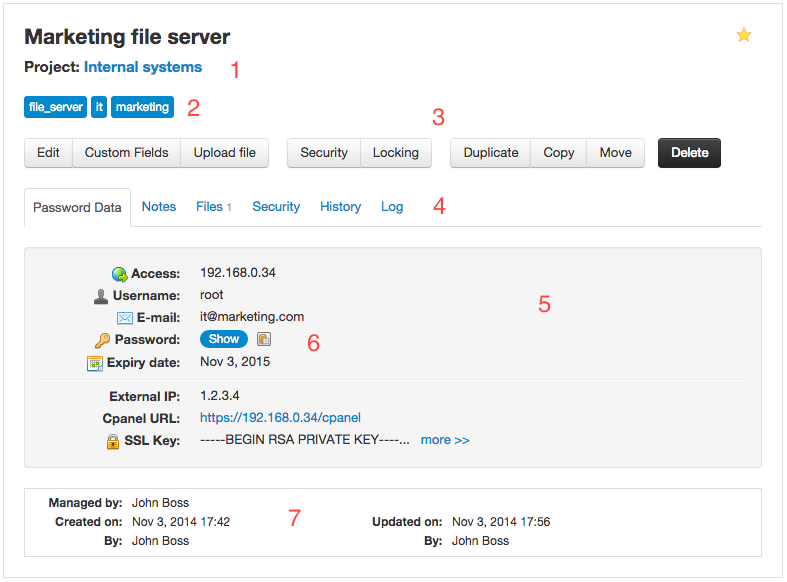
1) Project (with a link for quick access).
2) Tags for classification.
3) Actions that can be done on the password (depending on the user rights on the password).
4) Tabs to group data: main data, notes, uploaded files, who can access this password (security), changes to password data (history), and what has happened to this password (log).
5) Main data: access information, username, password and expiry date. Below expiry date up to 10 custom fields are shown (in this password only 3 are used). If a field begins with http/https, you can click on it for quick access.
6) A password is never shown by default. Click on "Show" to view it. Click on the clipboard icon to copy the password to the clipboard without having to show it.
7) Who created the password and last updated it, with the date and time.
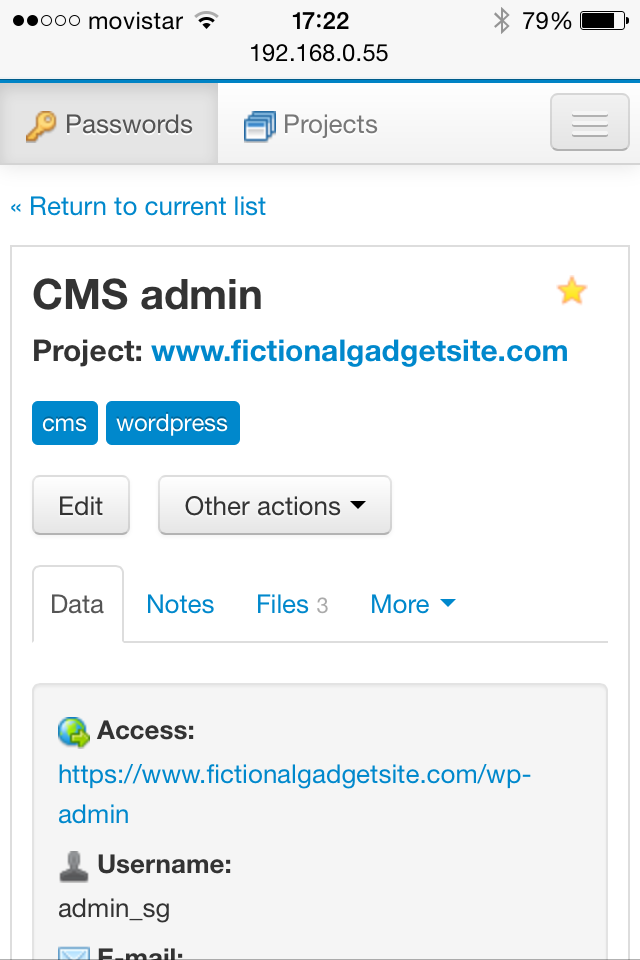
Here's the password view on a mobile device (IPhone):
Keeping passwords organized: project view
All passwords belong to a project
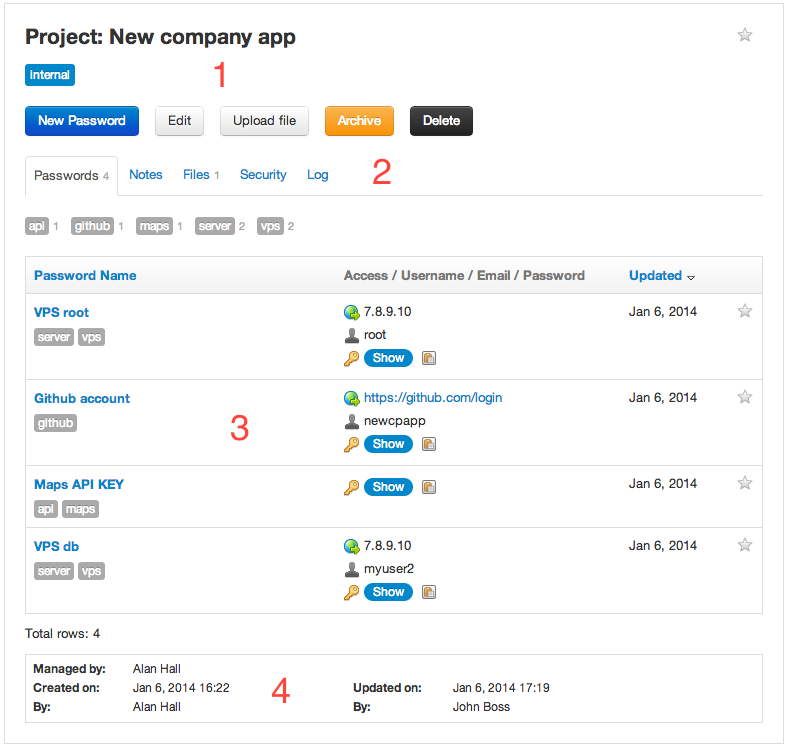
1) Project name and tags.
2) Tabs to group data: passwords of the project, notes, uploaded files, who can access this project (security), and what has happened to this project (log).
3) List of passwords of the project. You can also filter them by tag inside the project.
4) Who manages the project and who created it and last updated it, with the date and time.
Simple user management
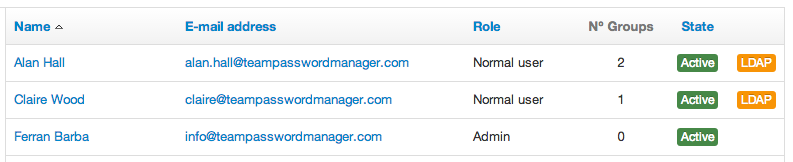
Team Password Manager uses a very simple user model: users belong to one of these roles: admin, project manager, it, normal user or read only:
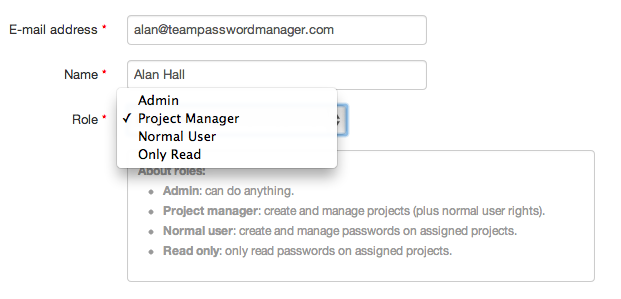
1) Admin users can do anything inside Team Password Manager.
2) Project manager users can create projects and assign users to them, plus they have the normal user rights.
3) Normal users can only create passwords inside the projects they have given access to.
3) Read only users can only view the passwords of the projects they have given access to.
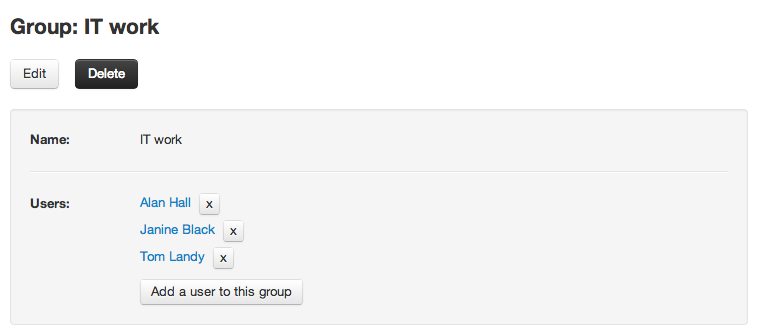
Groups
Group users to later assign permissions to a project:
Complete permissions system
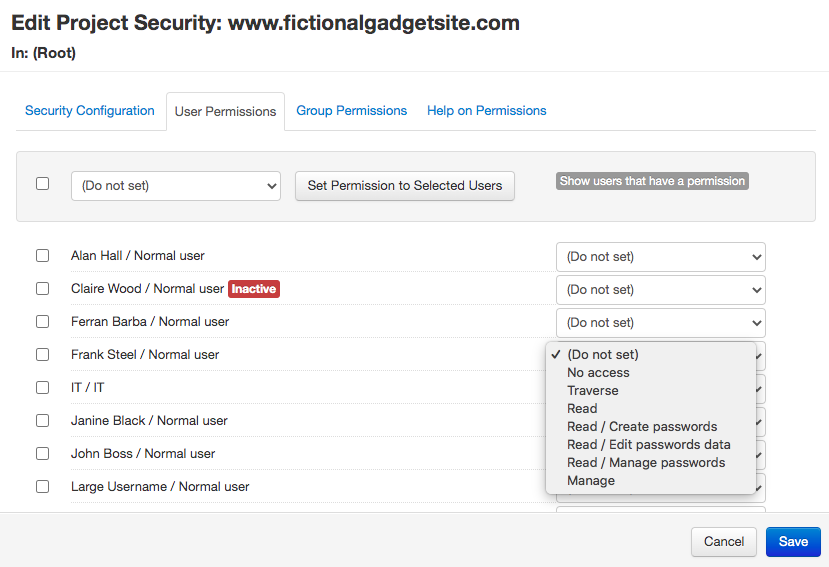
Access to a project and/or its passwords can be granted at the user or group level. There are many permission types so that you can adjust the type of access you want on an item:
Logging
Every action is recorded into a central log that can be queried by different fields.
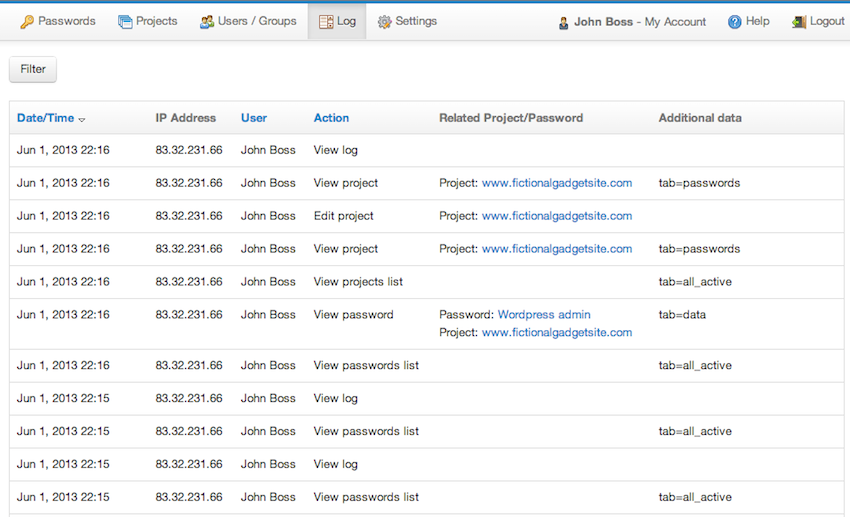
In addition to the central log shown above (that only admins can view), there's also a log tab in each password, project or user.
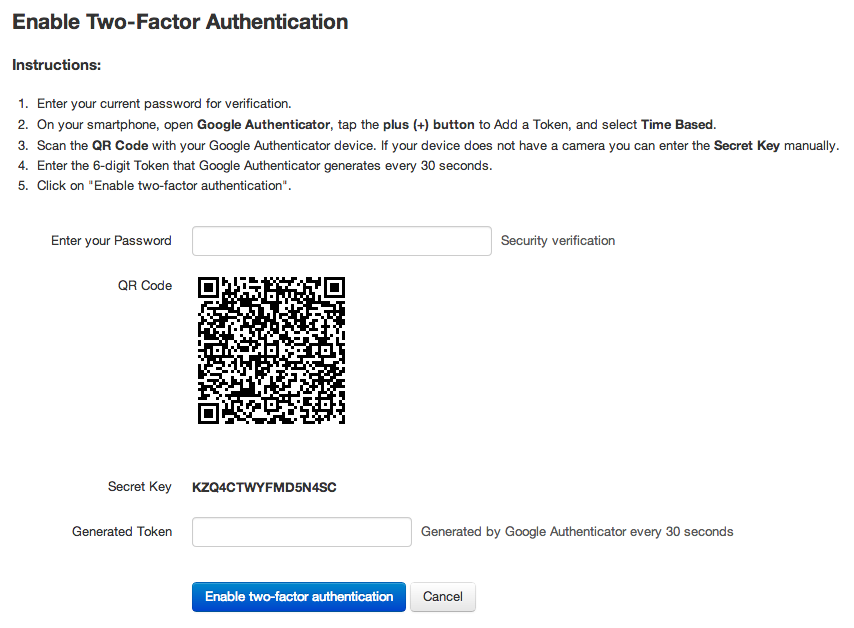
Two-Factor Authentication
For more security, every user in Team Password Manager can enable two-factor authentication with Google Authenticator
LDAP/AD Authentication, LDAP Sync and LDAP Groups
Team Password Manager also supports authenticating users via a Lightweight Directory Access Protocol (LDAP) or Active Directory (AD) server, as well as LDAP Sync and LDAP Groups for easier automation of user and groups management