
We're happy to announce the release of Team Password Manager v. 15.200.312, now available for download and upgrade.
This version is mostly about LDAP Sync, along with some improvements to custom fields and SAML.
LDAP Sync: two new object types
LDAP Sync now has six types of objects instead of four. Two are new in this version:
Activate/Deactivate Users
This object activates or deactivates LDAP users in Team Password Manager when they match a base DN and search filter on your LDAP/AD server. As with the other user objects, users are matched by username (case insensitive). If a user is already in the target state, nothing is done.
A typical use is to deactivate users in Team Password Manager who are disabled in Active Directory, using a filter like this:
(&(objectCategory=person)(objectClass=user)(userAccountControl:1.2.840.113556.1.4.803:=2))
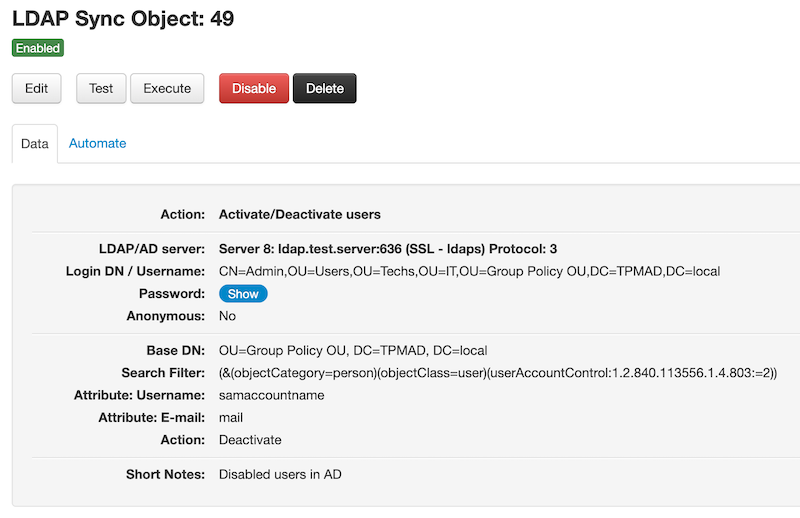
You can also turn it around and activate the users who are enabled in AD, or only the members of a specific group. Like the other LDAP Sync objects, you can run it by hand or automate it, so a user's status in Team Password Manager stays in step with your directory.
Learn more: Activate/deactivate users objects.
Test DN, Search Filter and Attributes
This object is for testing and debugging, and it doesn't change anything in Team Password Manager. You give it a base DN, a search filter and a list of attributes. When you test it, it shows the entries it found and the values of the attributes you asked for (use *,+ to get them all).
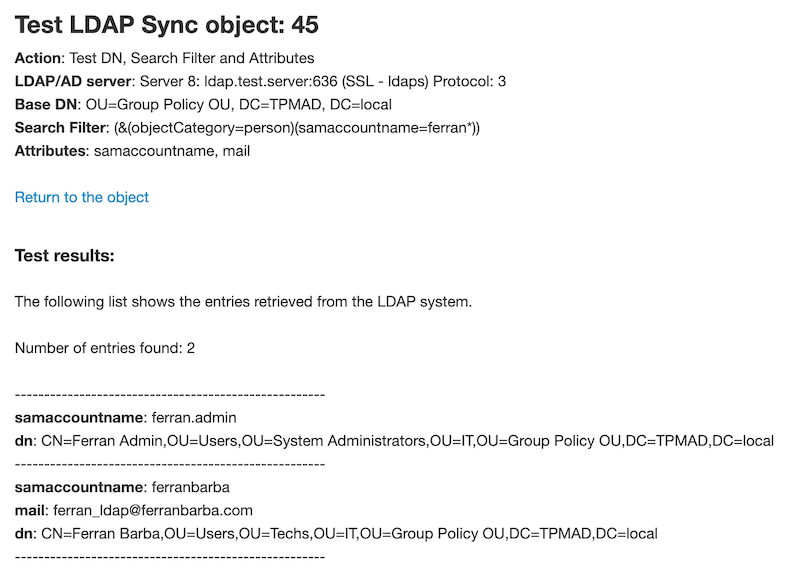
It's very handy when something doesn't work as expected, make sure to check the example usage in the following document:
Learn more: Test DN, Search Filter and Attributes objects.
"Import LDAP Users" has been removed
LDAP Sync does everything the old Import LDAP Users feature did, so we've removed Import LDAP Users in this version. If you still use it to create LDAP users, please switch to LDAP Sync "Add/update users" objects. You can run them manually whenever you need, just like the import.
Learn more in the LDAP Sync document.
Custom fields improvements
- OTP custom fields in lists: custom fields of type OTP are now shown in password lists. This way, you don't need to open the password screen to get a 2FA code.
- Copy to clipboard in custom fields and date fields: you can now copy the values of custom fields and date fields to the clipboard with one click.
Other changes
This version also includes some other small improvements, make sure to review the full changelog for details.
